
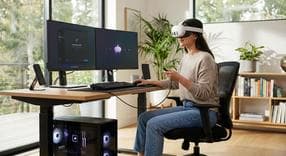
How to Connect Meta Quest 3 to PC
If you want to unlock the full potential of your VR headset in 2026, learning how to connect Meta Quest 3 to PC is an essential step. Whether you want to play graphically intense PC VR games or simply move media files back and forth, this guide will walk you through the exact steps to link your headset to your computer. We will explore every method available, including wired connections, wireless streaming, and popular third-party applications. By setting up your Meta Quest 3 PC link, you will quickly transform your standalone headset into a high-powered virtual reality machine.
PC System Requirements for Meta Quest 3 PC Link
Before you bridge your headset and your computer, you need to verify that your hardware can handle the heavy lifting of virtual reality. Running PC VR games smoothly requires a capable gaming rig. Here is what you need:- Processor and Graphics: You need a minimum of an Intel i5-4590 or AMD Ryzen 5 1500X CPU. For your GPU, an NVIDIA RTX 20-series or AMD Radeon RX 5000-series is the absolute minimum, though newer graphics cards are highly recommended for optimal performance.
- Memory: Your system must have at least 8GB of RAM, but 16GB is strongly recommended for a seamless gaming experience.
- Operating System: You must be running Windows 10 or Windows 11.
- Required Software: It is necessary to download and install the official Meta Quest Link PC app from Meta's website to act as the communication bridge between your devices.
How to Connect Meta Quest 3 to PC With Cable (Via USB)
The most stable and reliable way to experience PC VR is a direct wired connection. When you connect Meta Quest 3 to PC with cable, you benefit from the lowest possible latency and continuous battery charging while you play. Follow these steps to connect Meta Quest 3 to PC via usb:- Choose the right cable. You must use a high-quality USB-C 3.0 cable capable of high-speed data transfer.
- Plug the cable into a high-speed USB port on your PC, and connect the other end to your headset.
- Put on your headset and navigate to the quick settings menu. Select the option to enable "Quest Link."
- A prompt will appear inside the headset asking for permission to allow data access. Accept this prompt to finalize your wired connection.
How to Connect Meta Quest 3 to PC Wireless Using Air Link
Tangled wires can easily break your immersion. If you prefer complete freedom of movement, you will want to know how to connect Meta Quest 3 to PC wireless. Meta provides an excellent official built-in solution that allows you to connect Meta Quest 3 to PC AirLink. Here is how to connect Meta Quest 3 to PC without cable:- Network Requirements: For a smooth, stutter-free experience, your PC must be connected directly to your router using an Ethernet cable. Your headset should be connected wirelessly to a dedicated 5GHz or Wi-Fi 6 network.
- Enable the Feature: Open the Meta Quest PC app on your computer, navigate to the settings, and enable the Air Link feature. Next, put on your headset, go to your system settings, and toggle Air Link on.
- Pair the Devices: Select your computer from the list of available devices inside your headset. A pairing code will appear in VR and on your computer monitor. Confirm that the codes match to establish your wireless link.
Using Meta Quest 3 Virtual Desktop for PC VR
While Meta's official tools work great, many VR enthusiasts prefer using the Meta Quest 3 Virtual Desktop app for their wireless streaming needs. This third-party alternative is highly regarded for its performance and flexibility.- First, purchase and download the Virtual Desktop application directly from the Meta Quest store inside your headset.
- Next, go to your computer and download the free Virtual Desktop Streamer app from their official website. Install the program, run it, and enter your Quest username when prompted.
- Many users prefer Virtual Desktop over Air Link because it offers a highly intuitive user interface, extensive streaming customization options, and in many home network setups, noticeably better latency.
How to Connect Meta Quest 3 to PC Steam (SteamVR)
Once your headset is successfully communicating with your computer, you will likely want to dive into the massive library of VR games on Steam. To connect Meta Quest 3 to PC Steam, you just need a few additional software steps. This is also a perfect time to learn what a Steam Card is used for, as you can easily use Steam gift cards to expand your virtual reality library. Using prepaid cards is an excellent way to buy games safely without directly linking your personal credit card to your gaming profile.- Ensure that you have the standard Steam desktop client installed on your PC. Then, search for and download the free "SteamVR" application from the Steam store.
- Connect your headset to your computer using your preferred method, whether that is the Quest Link cable, Air Link, or Virtual Desktop.
- Once connected, launch the SteamVR app from your PC or select it directly from your virtual desktop view in the headset. You will immediately drop into the SteamVR home environment, where you can browse and launch your PC VR games.
How to Connect Meta Quest 3 to PC for File Transfer
Sometimes you do not want to play games; you just need to move downloaded mods, videos, or screenshots. Learning how to connect Meta Quest 3 to PC for file transfer is a quick and painless process that does not require launching any VR environments.- Connect your headset directly to your computer using a standard USB-C cable.
- Put the headset on your head. You will see a security prompt asking if you want to "Allow access to data." Use your VR controller to click "Allow."
- Take the headset off and open Windows File Explorer on your PC. You will see your Quest 3 listed under "This PC" as a connected media device. Open it to access the internal shared storage and drag-and-drop your files just like you would with a smartphone.
Frequently Asked Questions
Instant code delivery by email
Safe & secure payment
Certified reseller

Meta Quest
Direct delivery