
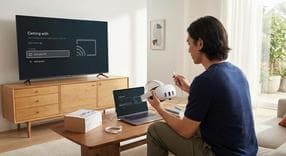
How to Connect Meta Quest 3 to TV
When you want to share your immersive virtual reality experiences with friends and family in the living room, you need to know exactly how to connect Meta Quest 3 to TV screens. Address this right away: the easiest way to share your VR gameplay on a television is through wireless casting. Sharing your gameplay is easier than ever in 2026, and setting up a Meta Quest 3 cast to TV allows everyone else to see exactly what you see in real time. Before jumping into your next adventure and buying games safely , follow these straightforward instructions to get your VR feed onto the big screen.
Primary Methods for Meta Quest 3 Screen Mirroring
To successfully achieve Meta Quest 3 screen mirroring, you must ensure that both your VR headset and your television are connected to the exact same local WiFi network. Fortunately, most modern smart TVs have built-in casting capabilities, making this process completely wireless and relatively fast.Casting Directly from the Headset to a Smart TV
The most direct way to share your screen is right from within the headset itself. Here is how you can set it up:- Put on your headset and press the Meta button on your right controller.
- Open the universal menu at the bottom of your field of view.
- Select the Camera icon.
- Choose the 'Cast' option.
- Select your target smart TV from the list of available devices to begin streaming.
Casting via the Meta Quest Mobile App
If you prefer an alternative method or if casting directly from VR is acting up, you can use your smartphone as a bridge to send the video feed to your television.- Open the Meta Quest app on your iOS or Android smartphone.
- Tap the 'Cast' icon located in the top right corner of the screen.
- Select your Quest 3 headset from the device list.
- Choose your target TV as the destination to start mirroring the gameplay.
How to Link Meta Quest 3 to Specific TV Brands and Ecosystems
Different television manufacturers use different operating systems, which can sometimes change the casting process. Here is how to link Meta Quest 3 to TV platforms across the most highly searched brands.Connect Meta Quest 3 to Samsung TV
Samsung TVs operate on the Tizen OS. If you have a newer model manufactured recently, your TV likely supports direct casting right from the headset's cast menu. However, older Samsung models might not show up natively. For those, you will need to cast your gameplay to the Meta Quest app on your phone first, and then use the SmartThings app to mirror your phone screen to the TV.Connect Meta Quest 3 to LG TV
LG televisions run on webOS. While some users find success casting directly, webOS can sometimes be restrictive with external casting protocols. If your LG TV does not appear in the headset's cast menu natively, using your smartphone as a bridge is the most reliable workaround. Simply mirror the Meta Quest app feed from your phone directly to the LG TV.Connect Meta Quest 3 to Roku TV
Roku TVs and streaming sticks do not natively support direct Chromecast signals from the Quest headset. To get your gameplay on a Roku screen, you must cast the Quest 3 to the Meta Quest mobile app first. Once the feed is on your phone, use your smartphone's built-in screen mirroring feature to cast to the Roku TV.Connect Meta Quest 3 to Apple TV
If you use an Apple TV, you will need a specific iOS-based workaround. First, cast your VR feed to the Meta Quest app on your iPhone or iPad. Once the gameplay is visible on your mobile screen, open your control center and use Apple AirPlay to send the screen over to your Apple TV.Connect Meta Quest 3 to Fire TV
Amazon Fire TV devices require a similar mobile-bridge workaround because they do not natively recognize the headset's cast. You can cast to your phone and mirror it to the Fire TV, or you can download a third-party receiver app directly on the Fire TV interface designed to accept the Quest 3 cast.How to Connect Meta Quest 3 to TV HDMI
If you are looking for a wired connection or specifically searching for how to connect meta quest 3 to tv hdmi, there are some important hardware details you need to know about your headset.The Limitations of Direct Wired Connections
The Meta Quest 3 features a versatile USB-C port, but it does not support direct USB-C to HDMI video out to a TV natively. You cannot simply plug a cable from the headset into your television to mirror your screen.Using an HDMI Chromecast Dongle
The absolute best "HDMI" solution is plugging a Google Chromecast dongle into your TV's HDMI port. This approach provides the most stable, natively supported casting experience for the Quest 3, especially if you are playing on older non-smart TVs that lack built-in wireless capabilities.Frequently Asked Questions
Instant code delivery by email
Safe & secure payment
Certified reseller

Meta Quest
Direct delivery