

Mobiletopup.co.uk is a certified reseller of Roblox
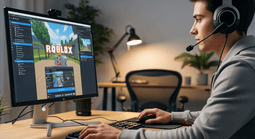
How to install Roblox: a quick and easy guide
Ready to explore a colourful world packed with millions of games? Installing Roblox on a computer or mobile device is simple, and we’ll show you how with our easy step-by-step guide.
Summary
New to Roblox? If so, you might be wondering how the installation process works. Unlike most apps, Roblox does things a little differently, as the setup only begins when you try to launch a game. During this guide, we’ll walk you through the simple steps so you can download the official game with ease, check that your system is ready, and get everything running smoothly. Once you’re set up, you’ll discover a huge mix of games, with everything from wacky obstacle courses to stylish social hangouts.What you’ll learn
- Where to find the official Roblox installer online.
- How to run a quick check to make sure your device can run the game.
- Simple steps so you can confidently install Roblox on PC or macOS.
- How to install Roblox on a mobile phone or tablet.
- What to do after you’ve installed Roblox.
Before you start
It’s a good idea to do a quick system check before you begin, to ensure that everything will run without a hitch. Roblox will work on most modern systems, but you will need a relatively recent version of Windows (7 or newer), or macOS (10.10 or newer), along with a decent internet connection. Also, it’s worth ensuring that your browser is updated to the latest version to allow the installation to run smoothly. For phones and tablets, Android devices require OS 8.0 or higher, while iOS devices require iOS 13 or higher.Step-by-Step Guide: How to install Roblox
Just a heads-up that you’ll need to be signed in to your Roblox account before you can download it onto PC or macOS. Don’t have a Roblox account yet? No problem – you can create a Roblox account for free online.Installing Roblox Player on a PC or laptop- Go to the official Roblox website using your favourite web browser.
- Sign in to your account.
- Select any game.
- Click on the green ‘Play’ button on your chosen game.
- A pop-up window will appear, letting you know that the installation is in process. It shouldn’t take long to fully install.
- Once installed, launch the Roblox Player using your browser of choice.
- Find a game that interests you and click ‘Play’.
- You may spot a pop-up window which asks you to choose a programme. Select ‘Roblox’ and confirm.
- If you select to remember your choice, you won’t be asked to choose a programme again in the future.
- Open Firefox and go to the official Roblox website.
- Log in, open any game, and click ‘Play’.
- A pop-up will appear, letting you know that Roblox is installing.
- When Firefox asks how you want to open Roblox links, tick ‘Always use this application’ and click ‘Choose’.
- A Finder window will pop up. Press CMD + SHIFT + G to open the ‘Go to Folder’ box.
- Finder will highlight the Roblox app. Select it and choose ‘Open’.
- Firefox will ask one more time if you want to open the link with Roblox. Pick Roblox.app and click ‘Open Link’.
How to install Roblox Studio
If you’d like to create your own games in Roblox, you’ll need to have Roblox Studio installed – follow the steps below so you can start creating!- Visit the Roblox website and log in.
- Once you’re signed in, head to any game and click the three dots in the top right corner, then click ‘Edit’.
- You’ll see a pop-up window, letting you know that Roblox Studio is installing.
- Roblox Studio will automatically open once the installation is complete.
Installing Roblox on a mobile or tablet
Wondering if you can install Roblox on your mobile phone? You certainly can, but the installation process looks a little different for Android and iOS devices.Here’s how to do it:Installing Roblox on Android- Open up the Google Play Store.
- Go to the search bar and type ‘Roblox’.
- Find the official Roblox app in the results.
- Tap the green ‘Install’ button.
- Once Roblox is installed, you can launch the app by tapping the icon on your home screen and logging in to your account.
- Open up the App Store.
- Head to the search bar and enter ‘Roblox’.
- Find the official Roblox app in the results.
- Tap the ‘Get’ button.
- Authenticate the download by entering your Apple password or by double-clicking the side button.
- Wait while Roblox installs on your device.
- When the download is complete, you’ll be able to open up Roblox by tapping the icon on your home screen.
- Log in to your Roblox account and you’re ready to go!
What to do after you’ve installed Roblox
Now that you’ve installed Roblox, it’s time to play and explore the limitless possibilities! You will also notice that you have two new icons on your desktop or within your application folder.Roblox Player – for playing games.Roblox Studio – for creating your own games.Roblox should launch the game you selected at the start automatically. If you don’t want to play the current game, you’re free to discover other options. Once you find a game that interests you, just click ‘Play’.All that’s left to do is browse, get to know the platform and have some fun – happy gaming!Need some Robux?
Fancy treating yourself to some new avatar outfits, accessories or something else? Get a head start with a Roblox gift card and redeem it for some Robux - the platform’s virtual currency.The spending options are endless with Robux, and it’s the perfect way to enhance your online game. Roblox gift cards start at just £10 on MobileTopUp, with instant delivery to your email address.Frequently Asked Questions
Why isn’t there a ‘Download’ button on Roblox for computers?
Roblox doesn’t offer a standard download link like other games. Instead, the installer will automatically start when you try to launch a game for the first time.
Is Roblox free to install?
Yes, it’s totally free to install Roblox and play on the main platform. If you want to enhance your game, you can opt to buy Robux – the virtual currency of the game. You can use Robux to buy accessories, avatar outfits, weapons, game passes and much more. Roblox Premium is also available as a monthly subscription.
Do I need to create a Roblox account before installing?
Yes, you will need to create a Roblox account and be signed in before you can begin the installation process. If you try to play while logged out, the download won’t start.
How long does it take to download Roblox?
This all depends on the speed of your internet connection and the performance of your computer or device, but generally, it should only take a few minutes. While the basic computer installation is pretty quick, larger game updates may take around 15–20 minutes.
Instant code delivery by email
Safe & secure payment
Certified reseller
Roblox
Direct delivery